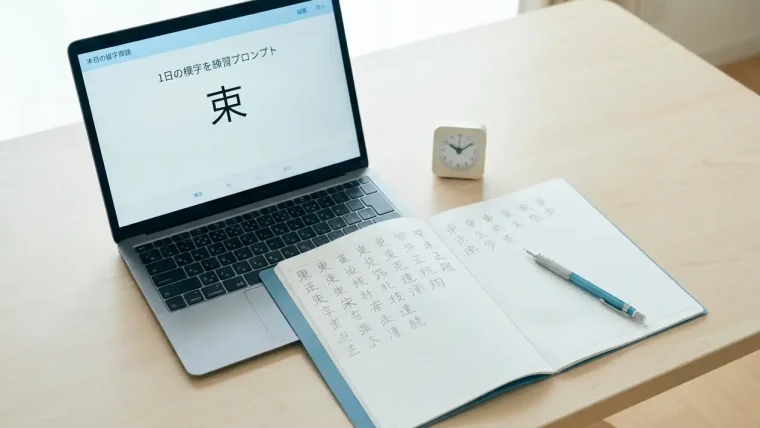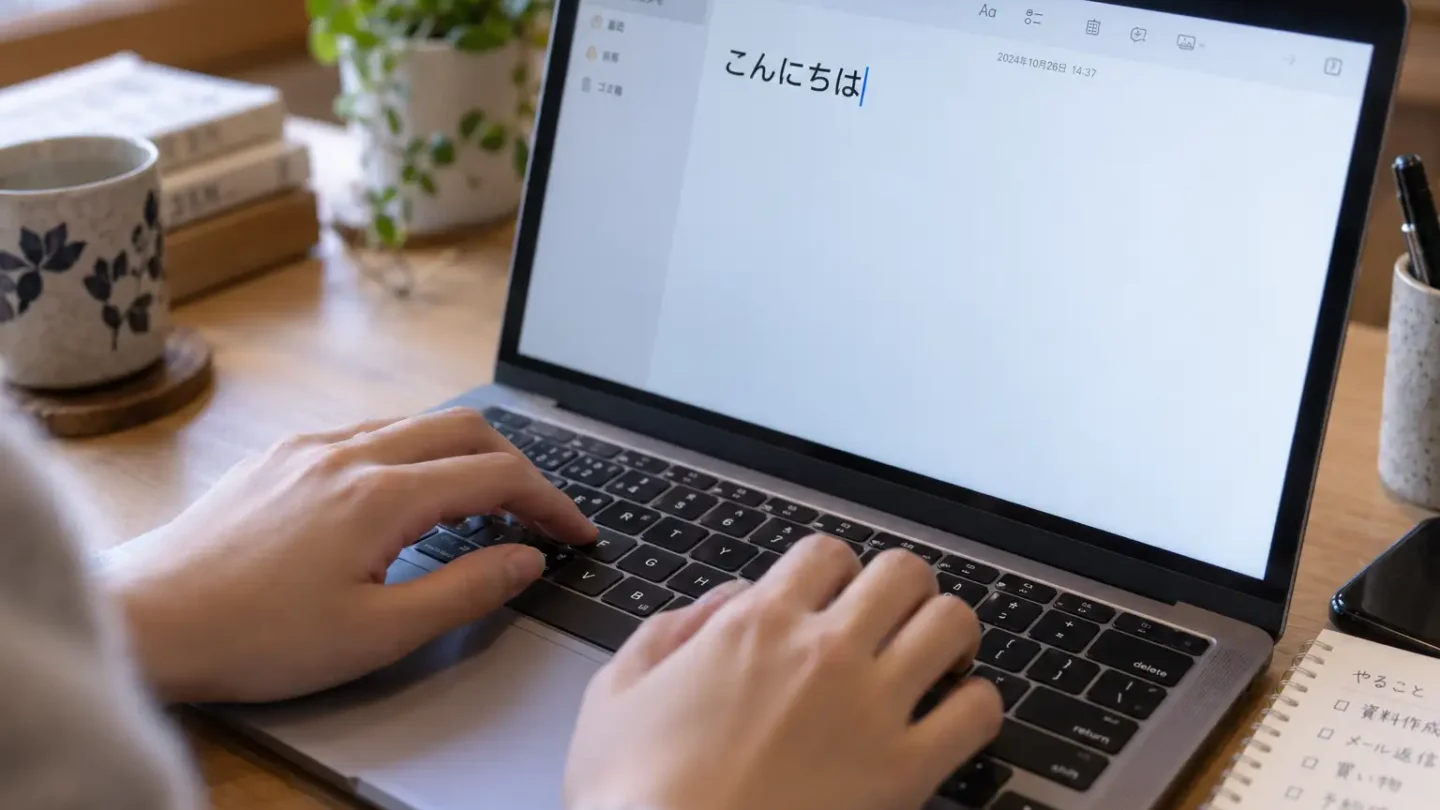
You don’t need a Japanese keyboard to type Japanese — you need an IME turned on, and you already own the keyboard that does it. How to type in japanese on a normal US keyboard comes down to typing romaji and letting the system convert it, on Windows, Mac, and iPhone alike, though the exact toggle sits in a different menu on each.
What Is an IME, and Why Do You Need to Turn It On?
An IME — Input Method Editor — sits between your keystrokes and the screen, watching what you type and converting it into hiragana, katakana, or kanji before it lands in the text field. It doesn’t teach you the scripts themselves; it just gives you a way to produce them once you already know what you’re aiming for. If hiragana and katakana are still unfamiliar shapes rather than a system you can navigate, Hiragana, Katakana, Kanji: How Japanese Writing Works is worth reading first — this article assumes you know roughly which script you want, not how to read it yet.
Every modern operating system ships its own IME already installed; none of them require downloading anything from outside your device’s own settings menu.
How Do You Turn On the Japanese IME on Windows?
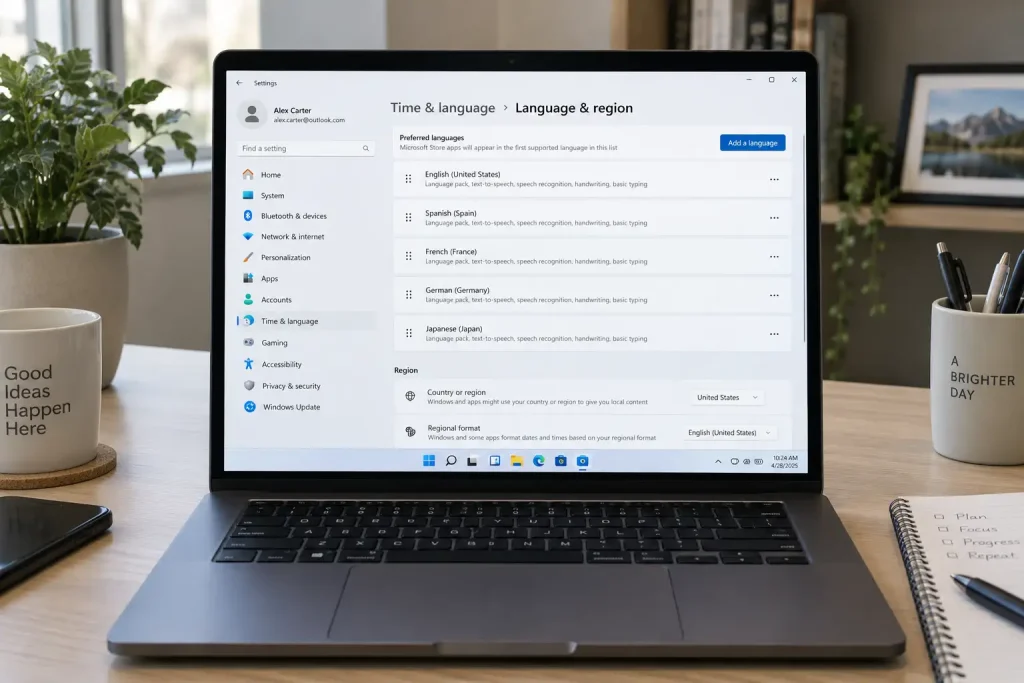
Open Settings, go to Time & Language, then Language & Region, and add Japanese as a preferred language — Windows installs Microsoft IME automatically as part of that language pack, per Microsoft’s own documentation. You don’t need to change your display language to English or Japanese one way or the other; installing the language pack is enough.
- Settings → Time & language → Language & region.
- Next to Preferred languages, select Add a language, search Japanese, and select Next.
- Choose Install (the optional language features aren’t necessary just for typing).
- Switch between installed languages with Windows key + Space, or toggle Japanese input on and off within that language using Alt + ` (the backquote key), per Microsoft’s published shortcut list.
- Look for an A or あ indicator in the system tray — A means direct alphanumeric input, あ means the IME is actively converting to hiragana.
How Do You Turn On Japanese Typing on a Mac?
On a Mac, the path runs through System Settings rather than a language pack: go to Keyboard, then Text Input, then Edit, click the add button, and select Japanese from the list. Apple’s own support documentation calls out the Romaji input mode specifically as the one meant for exactly this situation — a US keyboard with no Japanese key legends:
“The Romaji typing method is useful when you’re not using a Japanese keyboard; text you type is automatically converted to hiragana.”
— Apple Support, Set Up a Japanese Input Source on Mac
Once added, switch into Japanese input with Control-Shift-J (or Option-Shift-Z), and switch specifically into Katakana with Control-Shift-K, per Apple’s documented shortcut list — a detail worth remembering, since it comes back up two sections from now.
How Do You Add a Japanese Keyboard on an iPhone?
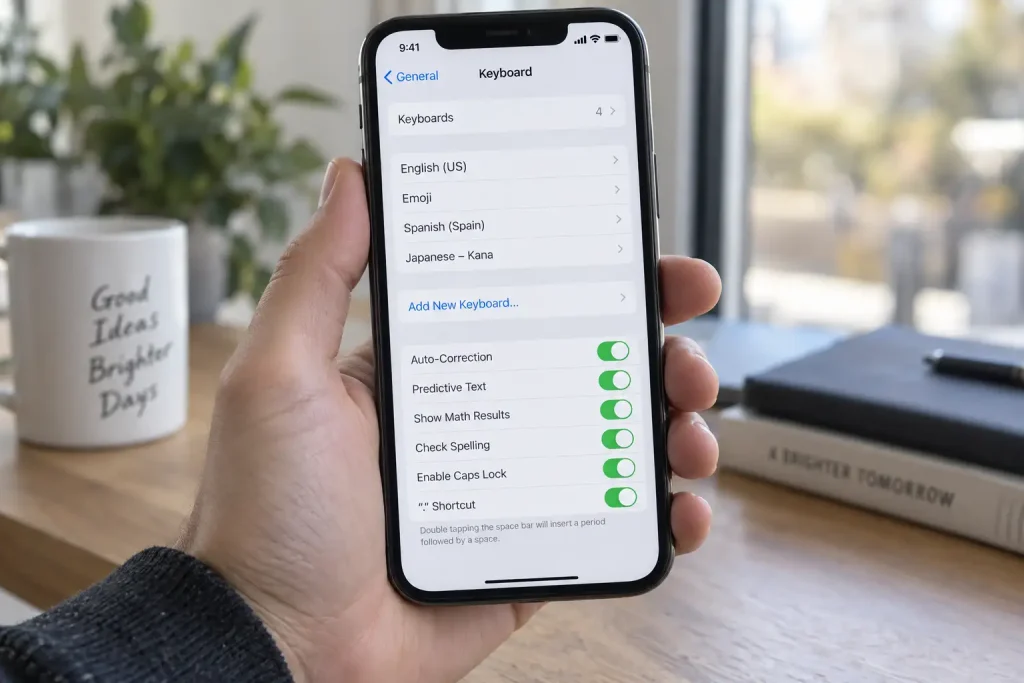
Go to Settings → General → Keyboard → Keyboards → Add New Keyboard, select Japanese, and choose Romaji, Kana, or both — Romaji is the QWERTY-style option that converts typed sounds into kana as you go, and it’s the one that matches how you’d already type on Windows or Mac. Once it’s added, a small globe icon appears on the on-screen keyboard whenever more than one language is installed; tapping it cycles through your installed keyboards, Japanese included.
There’s an honest limitation worth naming here rather than glossing over: the shortcut-heavy workflow that makes Windows and Mac typing fast doesn’t exist on iPhone. There’s no function-key row on a touchscreen, so several tricks in the next few sections simply don’t have an iOS equivalent — you’ll rely on tapping suggestion candidates instead, which is slower but works the same way underneath.
How Do You Actually Type Hiragana Once the IME Is On?
Type the word phonetically in romaji, and the IME builds it into hiragana in real time, before you’ve committed anything. A few spelling patterns don’t match English intuition and trip up almost everyone on the first attempt:
- ん (n) — type nn to get a standalone ん, especially before a vowel; typing just “n” before certain letters can produce ambiguous results the IME resolves differently than you’d expect.
- を (wo) — type wo, even though the character is pronounced identically to お (o) in modern speech; the IME still expects the historical spelling for this particle.
- っ (small tsu) — double the consonant that follows it, so kitte (切手, “postage stamp”) becomes きって, not きて.
- ー (long vowel mark, katakana only) — type a plain hyphen – to extend a katakana vowel, as in コーヒー (kōhī, “coffee”).
None of this maps onto any official romanization standard one-to-one — it’s IME-specific shorthand, distinct from the Hepburn or Kunrei systems used for actual transliteration. Romaji Explained: Three Systems and Which One to Use covers that separate question, which matters for writing names on official forms, not for typing into an IME.
| Sound or symbol | What courses teach | What the IME actually expects |
|---|---|---|
| ん before a vowel | Type “n” | Type “nn” |
| を (particle) | Sounds like “o” | Type “wo” |
| Doubled consonant (っ) | — | Double the following letter |
| Long vowel (katakana) | — | Type a hyphen (-) |
How Do You Switch to Katakana Without Retyping Everything?
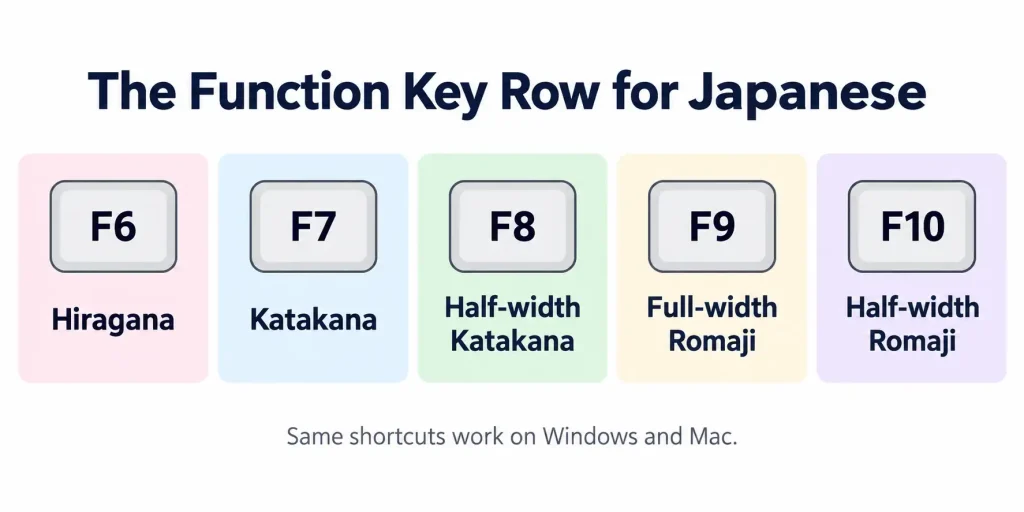
Press F7, and Windows Microsoft IME converts whatever you’ve just typed into full-width katakana — no need to delete it and start over in a different mode. Microsoft’s own documentation lists the full function-key row this way: F6 for hiragana, F7 for full-width katakana, F8 for half-width katakana, F9 for full-width alphanumeric, and F10 for half-width alphanumeric.
Here’s the detail that makes this genuinely worth knowing rather than a Windows-only party trick: the same F7 shortcut does the identical job on a Mac, per Apple’s own documented keyboard shortcuts for Japanese conversion — Control-K or F7 both convert to katakana there too. Two systems built independently converged on the same key. iPhone, without a function-key row, has no equivalent — katakana there means tapping the katakana candidate directly from the suggestion bar instead.
Katakana matters enough to earn its own explanation of why it exists as a separate script at all, rather than folding into hiragana — Three Scripts Doing Three Different Jobs covers that division, and it’s also the script behind most words borrowed from English, which don’t always sound quite like their English originals once they arrive — Why Japanese Loanwords Are Not the English You Think is the one-line pointer for that specific tangent.
What Do You Do When the IME Won’t Convert to Kanji Correctly?
Press the space bar to trigger 変換 (henkan, “conversion”) from hiragana into kanji, and if the first suggestion is wrong, press space again to cycle to the next candidate rather than deleting and retyping. Arrow keys move through the candidate list in both directions on Windows and Mac alike, and Enter commits whichever option is currently highlighted.
- Type the word phonetically in romaji; it appears as hiragana with an underline.
- Press space to convert; the IME shows its best-guess kanji.
- If it’s wrong, press space again (or use the down arrow) to see the next candidate.
- Press Enter once the correct kanji is highlighted to commit it.
- If none of the candidates are right, press Escape to fall back to plain hiragana and try a different reading.
What’s the One Thing No Beginner Course Ever Explains?
Here’s the gap that trips people up long after the basics feel comfortable: the IME’s dictionary doesn’t automatically know a name — yours, a friend’s, a place that isn’t common — and its first guess for an unfamiliar name is often wrong, sometimes in an unintentionally funny way. Both Windows Microsoft IME and macOS’s Japanese input method let you add custom entries to a personal dictionary, teaching the system a specific reading-to-kanji (or reading-to-katakana) pairing so it stops guessing wrong every time.
Before typing a foreign name into an IME from scratch, it’s often faster to check how that name is conventionally rendered in katakana first — the site’s name converter has already checked 898 names against standard katakana transliteration rules, which gives you a target spelling to type toward rather than guessing at the IME’s suggestion list.
Why Does the IME Sometimes Guess the Wrong Kanji Entirely?
Japanese has an enormous number of homophones, and an IME can only guess at context — it doesn’t know your intended meaning, only the sounds you typed and how those sounds have statistically been used before. Typing kikan could mean 期間 (“period of time”), 機関 (“institution” or “engine”), or several other words entirely, and the IME picks based on frequency and recent usage, not your intent. This is exactly why cycling through candidates with the space bar matters more than trusting the first suggestion — and why understanding how much kanji you actually need to recognize, rather than type, is a separate and worthwhile question on its own, covered in How Many Kanji Do You Actually Need?
What Should You Learn Next Once Typing Feels Natural?
Typing kanji correctly and recognizing it on sight are two different skills, and an IME’s candidate list will happily hand you a character you can type but can’t actually read back. What Spaced Repetition Does and Does Not Do is the honest next step — it covers what tools like WaniKani and Anki are actually good for, and where they run out of usefulness, once the IME has stopped being the hard part.